Set Up Your ZEK-01 ESP32 Kit With Arduino IDE
In this lesson, we’ll get your ZEK-01 ready for programming. We’ll install Arduino IDE, add ESP32 support, and check the USB connection. Then we’ll upload a short program so you can see your board respond.
Start The Setup ↓
Before You Begin
You only need the ESP32 board, a USB data cable, and your computer for this first lesson. Leave the breadboard, LEDs, and sensors in the box for now—we’ll use them in later experiments.
Have These Ready
- Your ZEK-01 ESP32 development board.
- A USB cable that fits the board and can transfer data. A charging-only cable will not work for uploading programs.
- A Windows or Mac computer with an internet connection for the downloads.
We’ll work through three setup steps, then check the whole connection with a simple program. By the end, you should see ZEK-01 serial test repeating in the IDE’s Serial Monitor.
Watch The Setup Walkthrough
If you prefer to watch the process first, start with our video below. You can also follow the written steps and return to the video whenever you want to see an operation on screen.
Watch On YouTube And Open The Playlist ↗
The first video introduces the setup and shows the IDE and ESP32 package installation. We’ll cover the USB driver in Step 03 with a separate video. Your software may look a little different; follow the menu and package names in the steps below.
Install Arduino IDE
Let’s start with Arduino IDE, the application you’ll use to write programs and send them to your ESP32. Arduino calls each program a sketch, so you’ll see that word throughout the course.
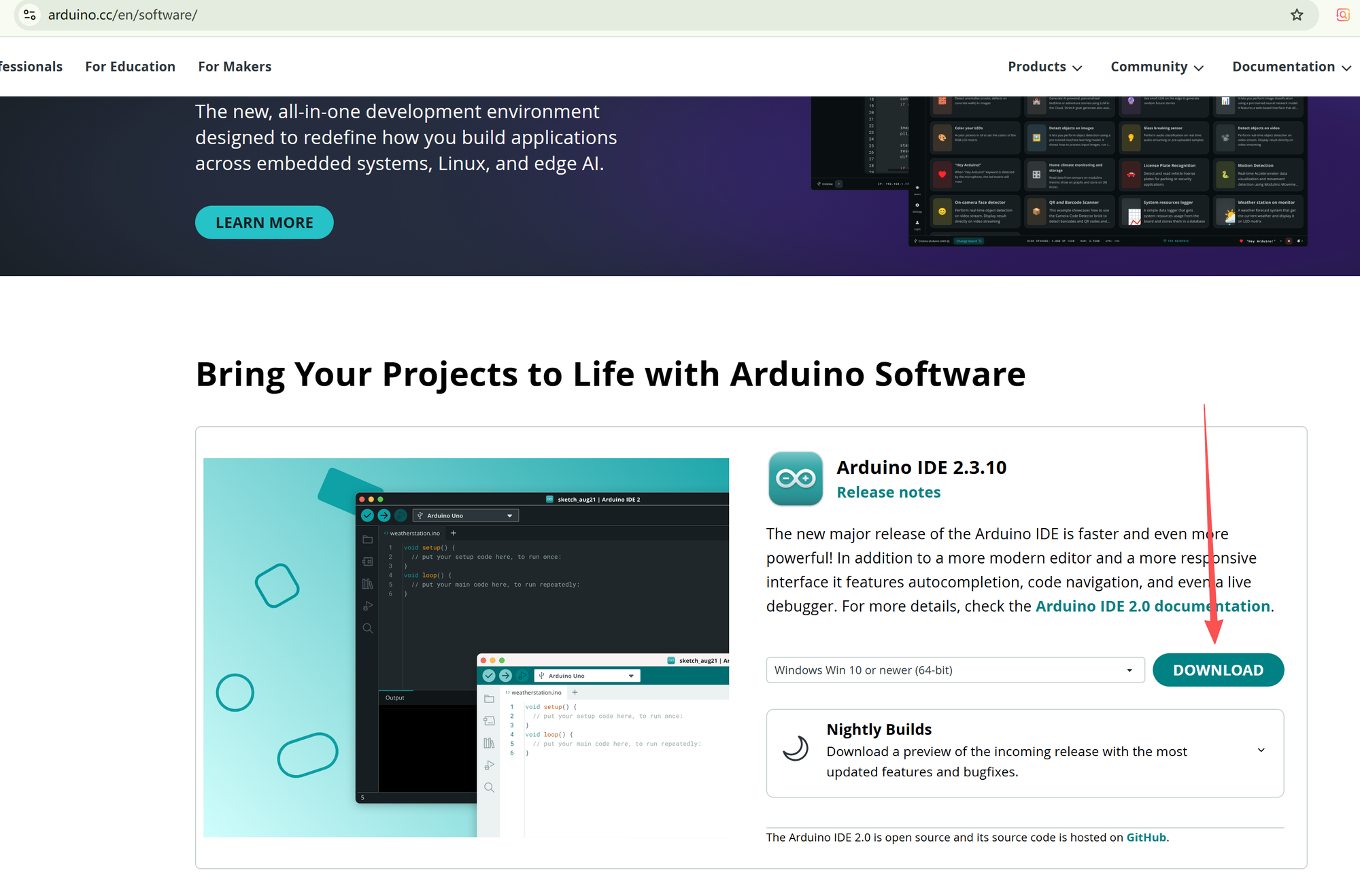
- Open the official Arduino software page.
- Choose the Arduino IDE download for your operating system, then follow the installer’s instructions.
- Once installation finishes, open Arduino IDE and create a new sketch.
Your editor should look similar to the screenshot below. We already have an LED example open in this image; you can leave your new sketch blank for now. We’ll give you the program for this lesson after the connection is ready.
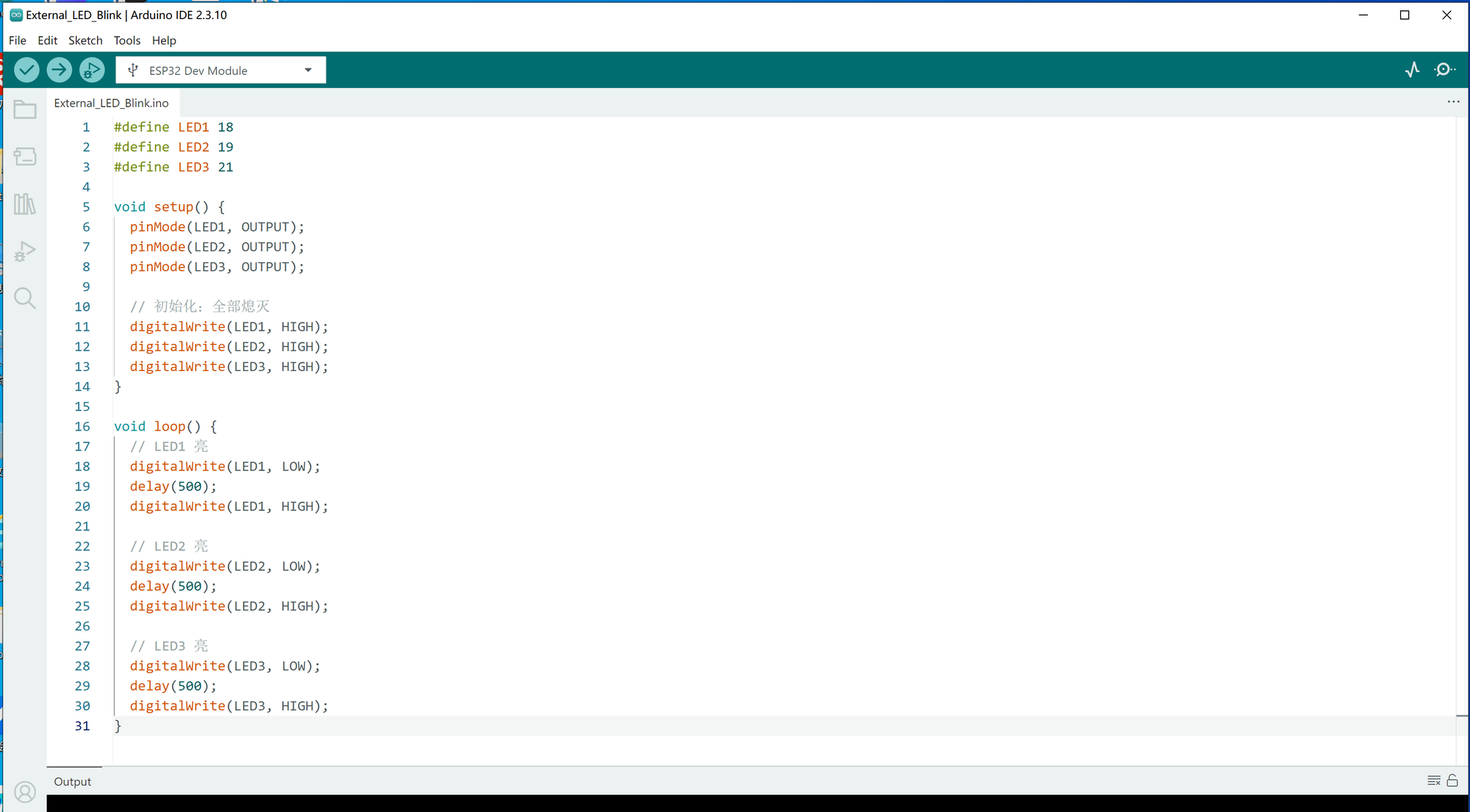
You can open the editor and see a sketch containing setup() and loop(). With the IDE ready, let’s add the files it needs to work with ESP32.
Add The ESP32 Board Support Package
The IDE is installed, but it still needs the ESP32 board package to build programs for your board. We’ll install esp32 by Espressif Systems using Boards Manager.
Try Method 1 first. If the Espressif package appears, you can install it directly. If it is missing, Method 2 shows you how to add its download source. You only need to install the package once.
Method 1 · Search Directly In Boards Manager
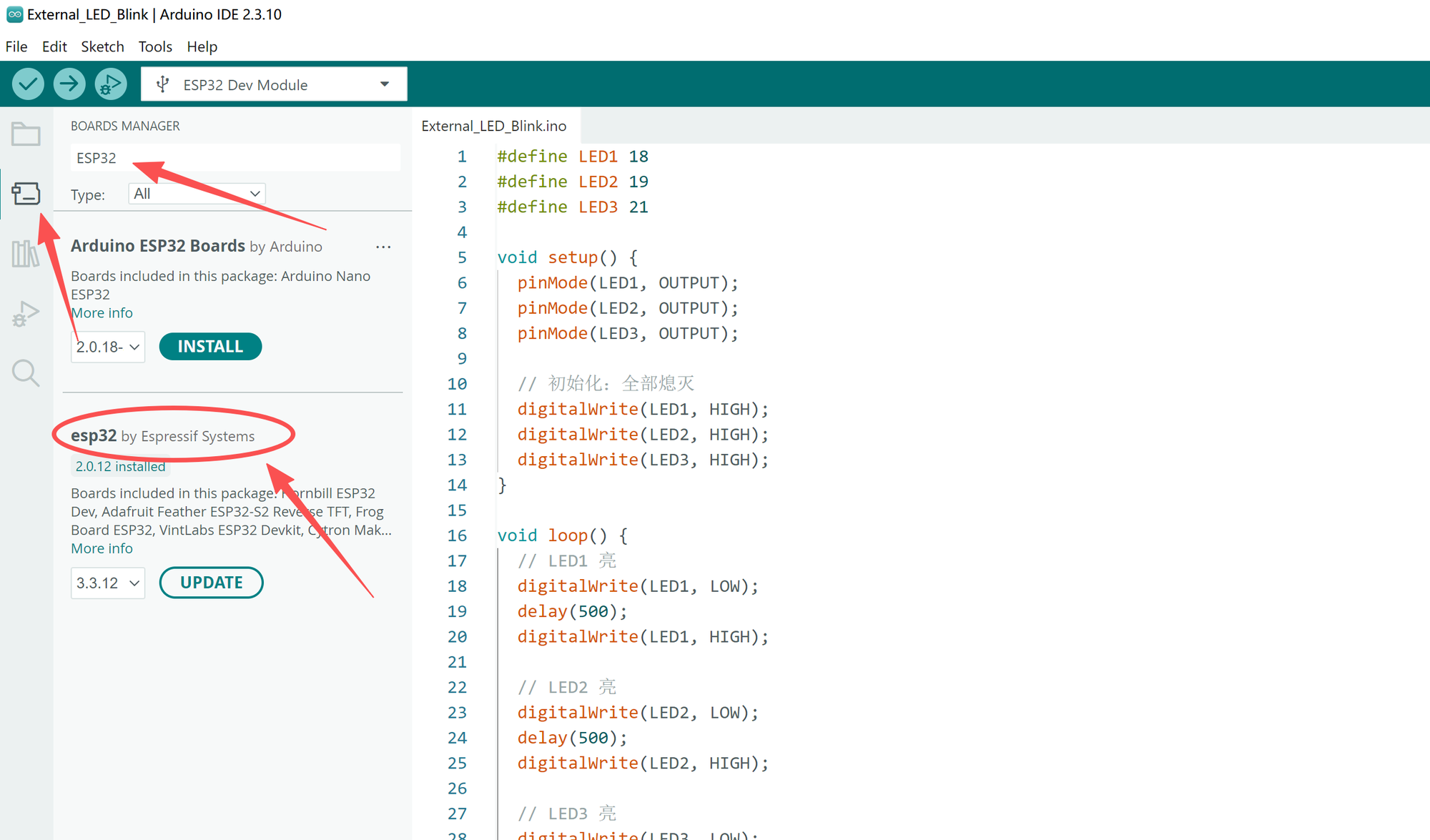
- Click the development-board icon in the IDE’s left sidebar to open Boards Manager.
- Type
esp32in the search box. - Find esp32 by Espressif Systems and click Install. Check the publisher carefully: Arduino ESP32 Boards by Arduino is a different package.
- Wait for the download and installation to finish. When the package is marked installed, you’re ready to continue. If it is already installed, leave it in place.
In our screenshot, version 2.0.12 is installed. The 3.3.12 entry is an available update, not the installed version. These numbers document the example shown; you do not need to change an existing installation just to match the image. Note the version you use so it is easier to troubleshoot later.
Method 2 · Add The Official Package URL First
If the Espressif package does not appear in your search, add its official index address. This tells the IDE where to find the package, as described in Espressif’s installation guide.
- Open Preferences in Arduino IDE and find Additional Boards Manager URLs.
- Add the address below, keeping any other URLs you already have, then click OK.
https://espressif.github.io/arduino-esp32/package_esp32_index.json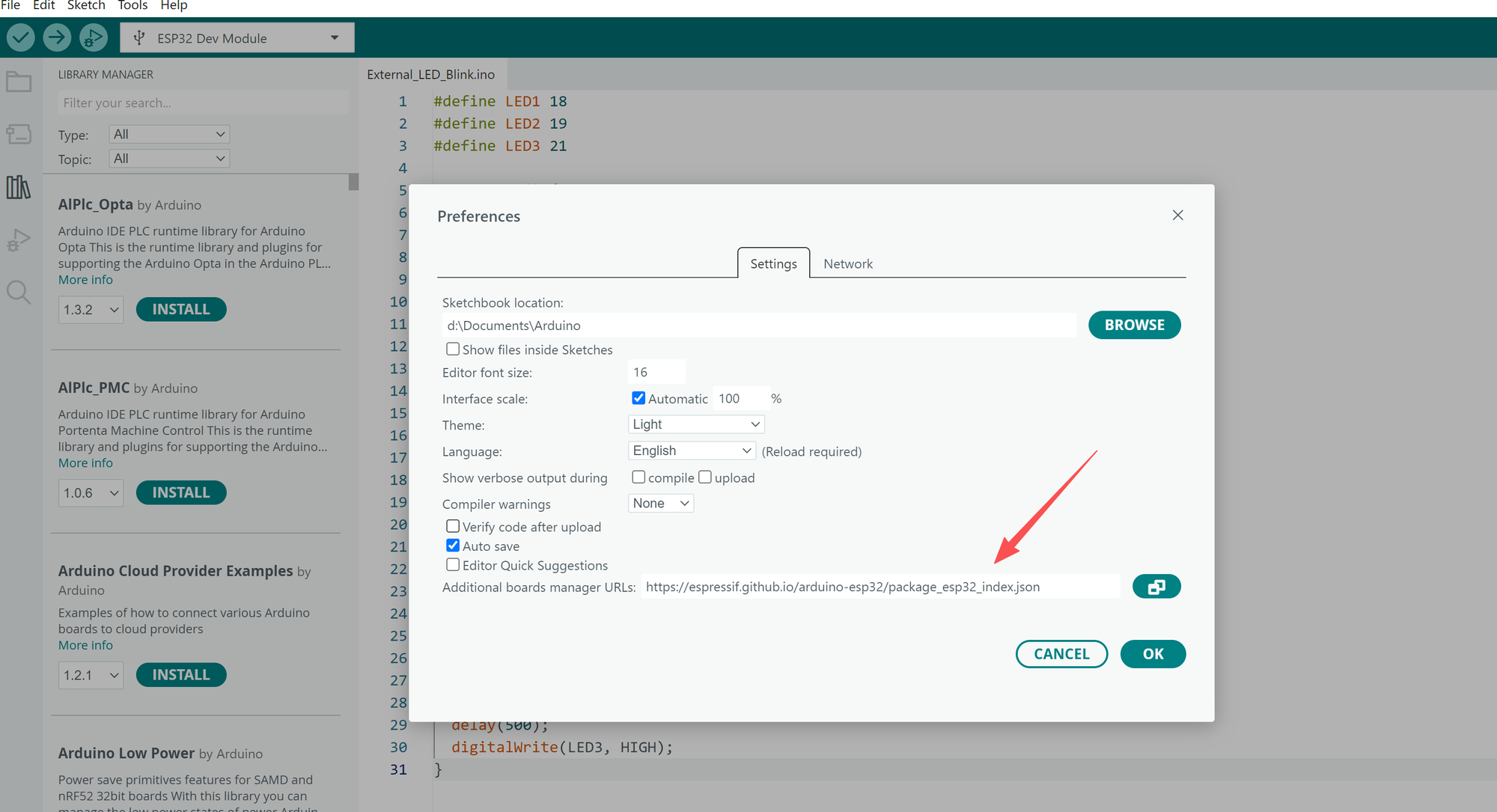
- Return to Boards Manager, search for
esp32, and install esp32 by Espressif Systems. - Wait until it is marked installed. Restart the IDE if it asks you to.
Use Boards Manager, the panel with the development-board icon. The book-shaped icon opens Library Manager, which is for adding libraries to your programs.
Check That The ESP32 Boards Are Listed
Open Tools → Board → esp32. You should now see the ESP32 board choices. Our example uses ESP32 Dev Module, as shown below.
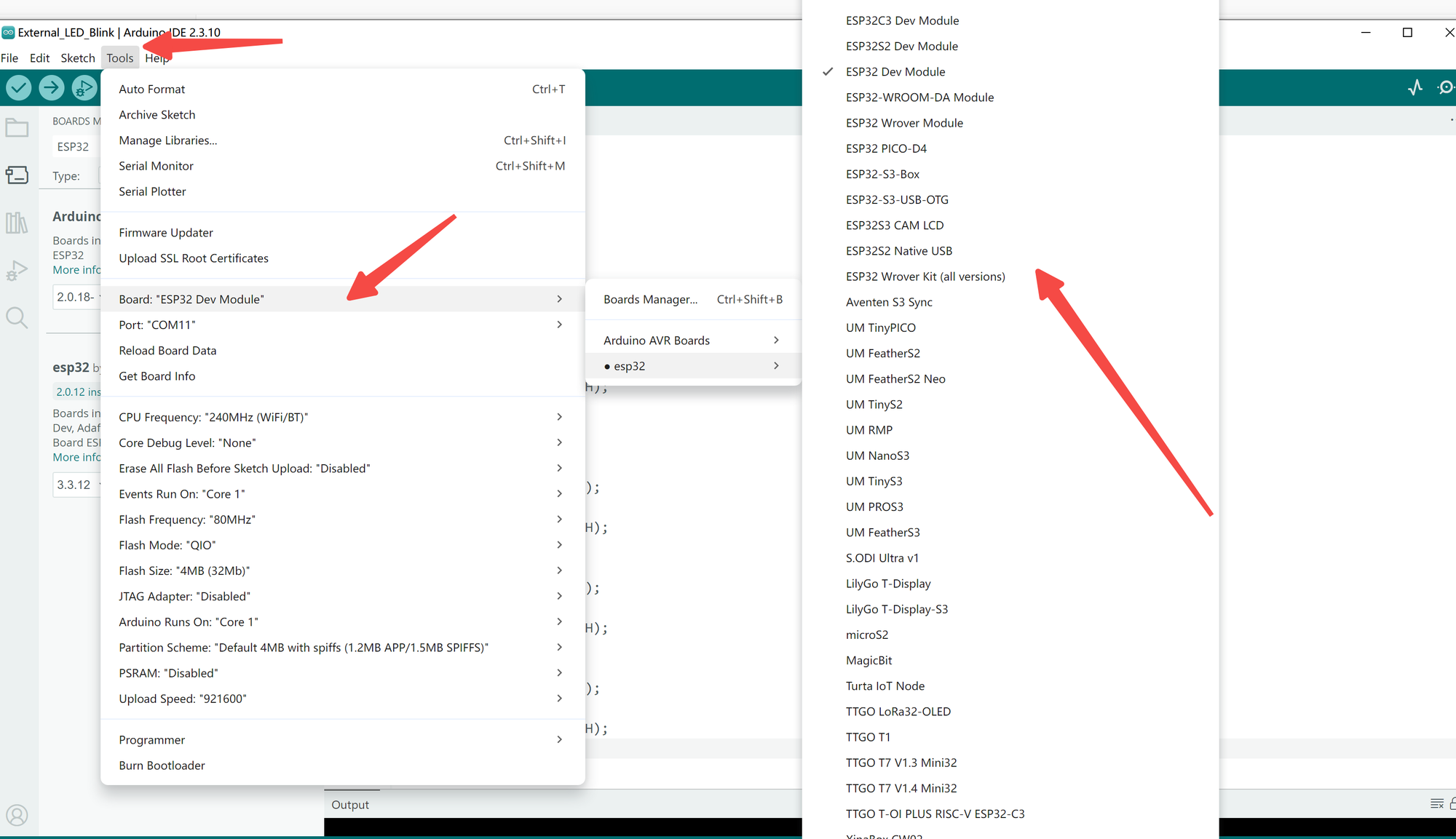
The Espressif package is installed and the ESP32 board list is available. Next, we’ll connect the board and check that your computer can communicate with it.
Check The USB Connection And CP210x Driver
Now connect your ESP32 board to the computer with the USB data cable. Before installing anything else, let’s check whether the computer already recognizes it.
On Windows, open Device Manager → Ports (COM & LPT) and look for the serial device that appears when you connect the board. You can also check the port list in Arduino IDE. If the board is recognized without a warning and its port is available, skip the driver installation and go to Confirm The Serial Port. A power light by itself only tells you that the board has power.
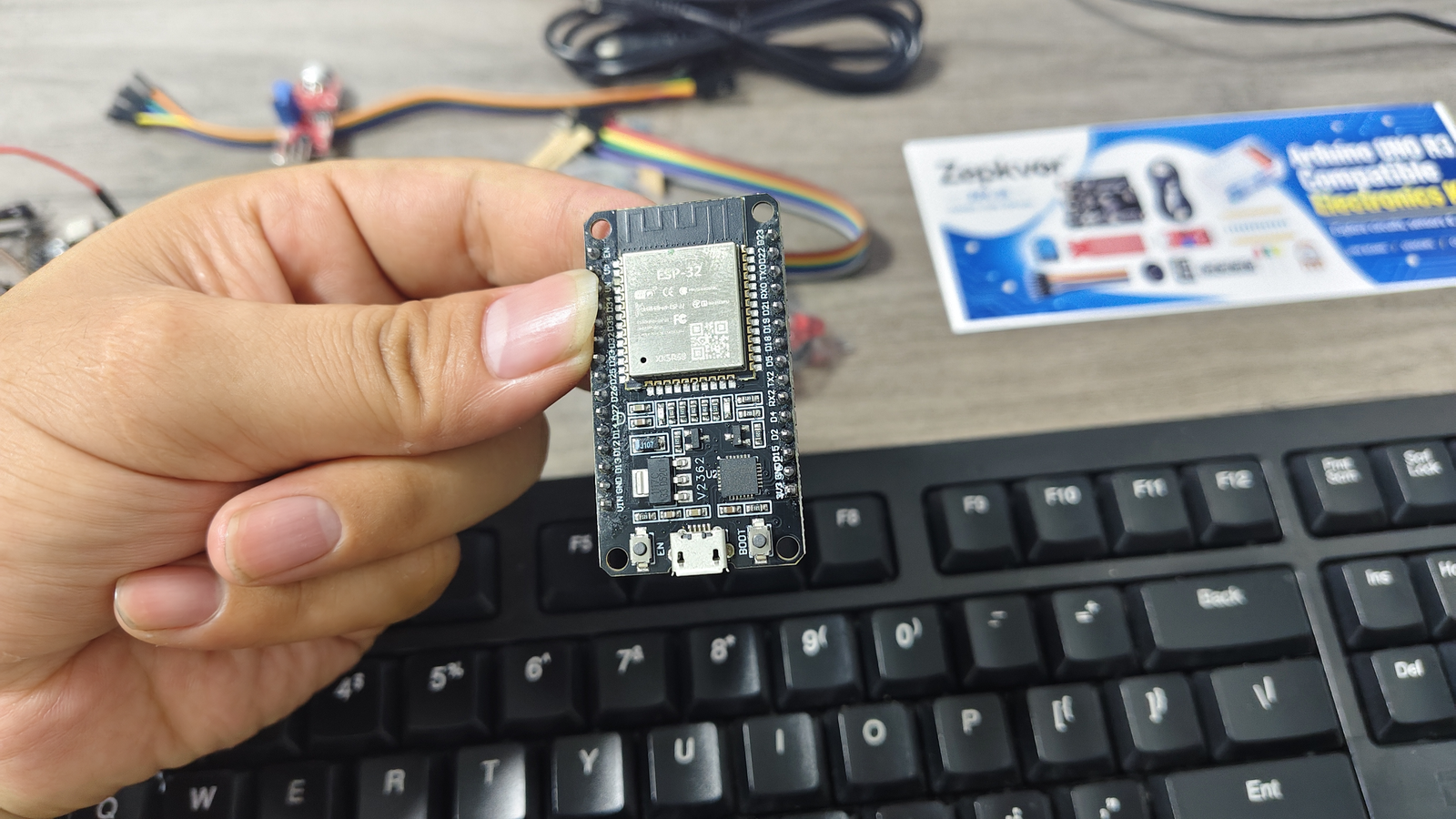
If the board is not recognized, check its USB-to-serial chip before choosing a driver. The CP210x installation steps below are for boards fitted with CP2102; another chip needs its matching driver.
Watch The CP210x Installation Walkthrough
Our Windows video shows the driver check, installation, and return to the port list. We remove an existing driver to demonstrate the missing-driver state—you do not need to remove a working driver on your computer.
Watch The USB Driver Installation On YouTube ↗
1. Download The CP210x Driver
- Open the official Silicon Labs CP210x VCP driver page.
- Choose the package for your operating system and check that your system is supported.
- Download and extract the archive, then open its installation instructions.
2. Install The Driver On Windows
The files in your download may look different from those in the video. Choose the instructions below that match your package; you only need to follow one route.
If Your Package Includes An EXE Installer
In the video, we use a package containing CP210xVCPInstaller_x64.exe and CP210xVCPInstaller_x86.exe.
- Open the extracted folder and choose the installer for your Windows system architecture.
- Run it and follow the setup wizard, reviewing the license terms when prompted.
- Finish the installation and restart the computer if the installer asks you to.
If Your Package Uses INF Files
If there is no EXE installer, follow the instructions included with the package. For a Device Manager installation:
- Connect the board and find its device in Device Manager.
- Choose Update driver → Browse my computer for drivers.
- Select the extracted driver folder, include subfolders, and let Windows finish the installation.
You can find background on these installation methods in Silicon Labs’ AN335 guide. Follow the instructions shipped with your downloaded package for its exact procedure.
If You Use macOS
Download the macOS VCP package from the same Silicon Labs page and follow its included setup instructions. Once it is installed, reconnect the board and check its port in Arduino IDE. The video above demonstrates Windows, so use the macOS package instructions for the installation screens on your Mac.
3. Confirm The Serial Port
- Reconnect the board using the USB data cable.
- On Windows, check Device Manager → Ports (COM & LPT). Find the board’s serial device, check that it has no warning icon, and note its COM number. On macOS, find the board’s port in Arduino IDE.
- Return to the IDE and select the port assigned to your board.
Our video shows COM8, while the setup screenshot shows COM11. Your port may have a different name or number. To help identify it, compare the port list with the board disconnected and connected.
You can identify and select the board’s serial port. Let’s use it to upload a program and check that the complete connection works.
Upload Your First Serial Test
We’ll use a short program that sends a line of text to the computer every second. There is no circuit to build: keep the board connected by USB and leave the other components aside.
- In Tools → Board → esp32, select the profile for your board. Our example uses ESP32 Dev Module.
- Select the serial port you identified in Step 03.
- Open a new sketch, replace its contents with the code below, and save it as
FirstSerialTest. You can also use the download link to get the sketch. - Click Verify to compile the program. If it finishes without errors, click Upload and wait for the transfer to complete.
void setup() {
  Serial.begin(115200);
  delay(1000);
}

void loop() {
  Serial.println("ZEK-01 serial test");
  delay(1000);
}See The Message In Serial Monitor
After the upload finishes, open Serial Monitor and set its speed to 115200 baud, matching Serial.begin(115200) in the program. You should see ZEK-01 serial test appear about once per second.
When that message repeats, your program is running and the board is sending data back to the computer. You’ve completed the setup needed for the next experiments.
Your Completion Checklist
Troubleshooting
If a step does not work as expected, start with the matching symptom below. You usually only need to revisit the part of the setup involved.
No Serial Port Appears
Start with the cable: try one you know can transfer data, then try another USB port. Watch for a new device as you reconnect the board. If it appears with a warning, check the USB-to-serial chip and install the matching driver using the guidance in Step 03.
The ESP32 Package Download Fails
Check your internet connection and keep a copy of the error message. Confirm that you are installing esp32 by Espressif Systems and, if you added an index URL, that it matches the address in Step 02. Use Espressif’s installation guide when checking the package source.
The Sketch Compiles But Will Not Upload
Check the selected board and port, then close any other application using the same serial connection. Reconnect the board and try again. If the upload stalls while connecting, Espressif notes that some boards may need the BOOT button held during upload; follow the instructions for your board.
Serial Text Is Missing Or Garbled
Check that Serial Monitor is set to 115200 baud and uses the same port as the upload. If you still see no message, confirm that you uploaded the serial-test sketch shown above rather than the LED example in the screenshots.
Common Questions
How Do I Set Up ESP32 In Arduino IDE?
Install Arduino IDE, add esp32 by Espressif Systems in Boards Manager, and check the USB connection. Select your board and port, upload the serial-test sketch, and look for its message in Serial Monitor at 115200 baud.
Do I Need To Use Both Package Installation Methods?
No. If the direct search works, you can skip Method 2. Adding the index URL is another way to make the same Espressif package available in Boards Manager.
Do I Need To Reinstall The USB Driver?
Not if the board is already recognized and its serial connection works. If it is missing or shows a device warning, check the chip and follow the relevant driver instructions in Step 03.
Do I Need A Breadboard Or An LED?
No. This lesson checks the connection using text sent over USB. We’ll use the breadboard and LEDs in later experiments.
How Do I Know I Have Finished?
The upload completes and Serial Monitor displays ZEK-01 serial test repeatedly at 115200 baud. That is the result to look for before moving on.
Author And Test Notes
Tim wrote this tutorial for Zepkvor using our setup videos and the software publishers’ documentation. We have successfully uploaded programs on Windows and macOS and tested the serial example used here.
We did not retain the exact operating-system, IDE, board-package, and driver versions from our earlier tests. The screenshots document the versions listed below; they are not a guarantee that every software release has been tested with this lesson.
Sources And Software Versions
Use these official pages for downloads and installation details. The references for this lesson were reviewed on 16 October 2026.
- Arduino · Official IDE Downloads
- Espressif · Arduino-ESP32 Installation
- Silicon Labs · CP210x VCP Drivers
- Zepkvor · Original Setup Walkthrough
- Zepkvor · CP210x USB Driver Installation
The setup screenshots show an LED sketch already open. For this lesson’s connection check, use FirstSerialTest above. If your screen looks different, follow the package, board, and menu names rather than trying to match every detail in the images.
| Item | Shown In This Lesson |
|---|---|
| Arduino IDE | 2.3.10 In The Setup Screenshots |
| Espressif ESP32 Package | 2.0.12 Installed; 3.3.12 Shown As An Available Update |
| Board Profile | ESP32 Dev Module In Our Example |
| USB Driver Walkthrough | CP210x For CP2102-Based Boards |
| Serial Monitor Speed | 115200 Baud For FirstSerialTest |